Show real names in Microsoft 365 usage reports
Microsoft 365 can replace every user, group, and site name in its usage reports with a hash. While that setting is on, the Zation FinOps Platform receives the reports but cannot match a single row to an account — licence optimisation, inactivity, Copilot readiness, and the Dynamics 365 pages stay empty or incomplete. This page shows how to turn the setting off.
The Platform tells you when this applies to your tenant: a notice opens in the Platform pointing here. If you have not seen that notice, this page does not concern you.
The Platform holds Reports.Read.All and the reports arrive normally. What is
missing is the identity inside them. Granting more permissions changes nothing —
only the tenant setting below does.
Microsoft turned this setting on by default for every tenant on 1 September 2021, so most tenants are concealed unless someone has changed it. It applies to the usage reports in the Microsoft 365 admin center, in the Microsoft Teams admin center, in Microsoft Graph, and in Power BI — the Platform reads them through Graph.
Before you begin
- The Global Administrator role in your Microsoft 365 tenant. No other role can change this setting, and neither the Platform nor Zation can change it for you.
- Around two minutes, plus a few minutes for the change to take effect on Microsoft's side. The Platform picks it up on its next nightly sync.
Steps
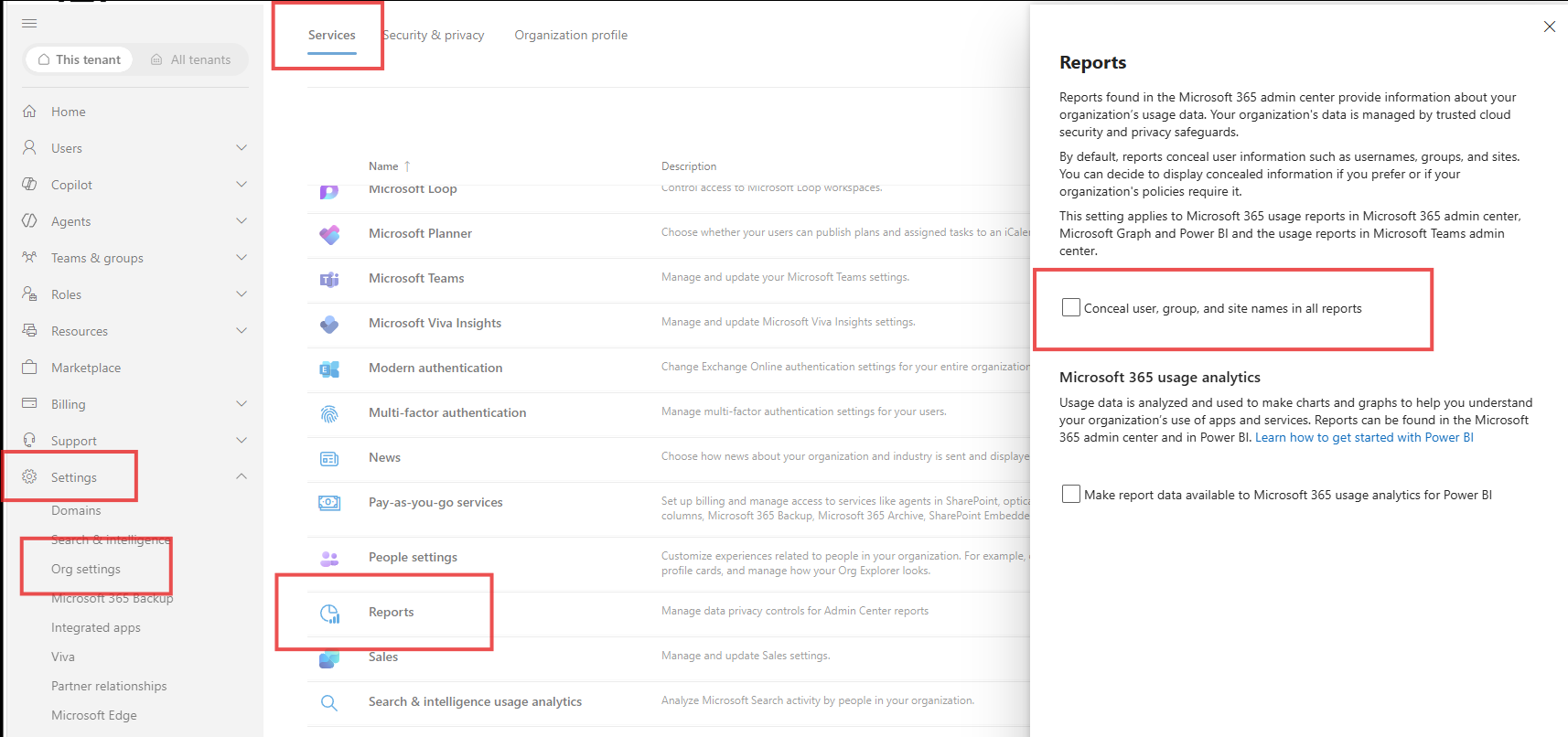
- Sign in to the Microsoft 365 admin center and go to Settings → Org settings → Services.
- In the services list, open Reports.
- Clear the checkbox Conceal user, group, and site names in all reports and save.
The Platform reads the reports on every nightly sync, not once. If the setting is switched back on, the same pages go empty again from the next sync onwards.
Microsoft records the change: showing identifiable user information is a logged event in the Microsoft Purview audit log, so your own compliance team can see who made it and when.
Verify
- Wait for the next nightly sync — within 24 hours.
- Open platform.zation.io → Microsoft 365 → Profiling. The in-product notice is gone and the user rows carry names and activity dates.
Most of what was missing comes back on its own. Microsoft's usage reports are trailing-window reports — last 7, 30, 90, and 180 days — so the first sync after the change already covers the period that arrived concealed. The Platform also re-reads Microsoft's daily per-app reports, which Microsoft retains for 30 days, so the per-day activity behind the app-level figures refills within a night or two.
Per-day activity older than Microsoft's 30-day retention cannot be re-read, so days that were concealed longer ago than that stay blank in the 90-day window. The aggregate figures from the trailing reports are unaffected; only per-day detail for those specific days is gone. The longer the setting stays on, the more of that detail is lost.
Troubleshooting
| Symptom | Likely cause | Fix |
|---|---|---|
| The checkbox is greyed out, or Reports is missing under Services | Your role is not Global Administrator | Ask a Global Administrator to make the change |
| The notice is still there the next day | The nightly sync has not run yet, or ran before the change | Wait for one more nightly cycle, then contact platform@zation.io |
| Names appear, but adoption figures stay at zero | A different cause — usually a missing audit-based usage permission | See Permissions |
Site names in Microsoft 365 Storage still read Site <GUID> | The same setting also blanks SharePoint site URLs | The GUID resolves to a name from the next sync after the change |
Why the Platform asks instead of changing it itself
Reading or writing this setting through Microsoft Graph requires the
ReportSettings.ReadWrite.All application permission. The Platform does not ask
for it during onboarding: it is the only write scope the Microsoft 365 integration
would ever use, and holding it would let Zation switch a tenant-wide privacy
control on and off without your involvement. Everything else the Platform reads
from Microsoft 365 is read-only.
If you cannot turn the setting off tenant-wide — a works-council agreement, for example — you can grant that one scope instead. The sync then clears the setting for the few seconds it needs to fetch the reports and switches it back on immediately afterwards, on every run.
Between clearing and restoring the setting, reports show real names to everyone in your tenant, not only to Zation. A sync that dies mid-run leaves it cleared until the next one. Turning the setting off permanently avoids the toggle entirely, which is why it is the recommended route. Talk to Zation before granting this scope.
Related
- Privacy Mode and report transparency — Zation's own pseudonymisation control, which is unrelated to this Microsoft setting
- Permissions — which scopes the Platform reads and what each one covers